Read the video transcript
- Export WhatsApp Business labels.
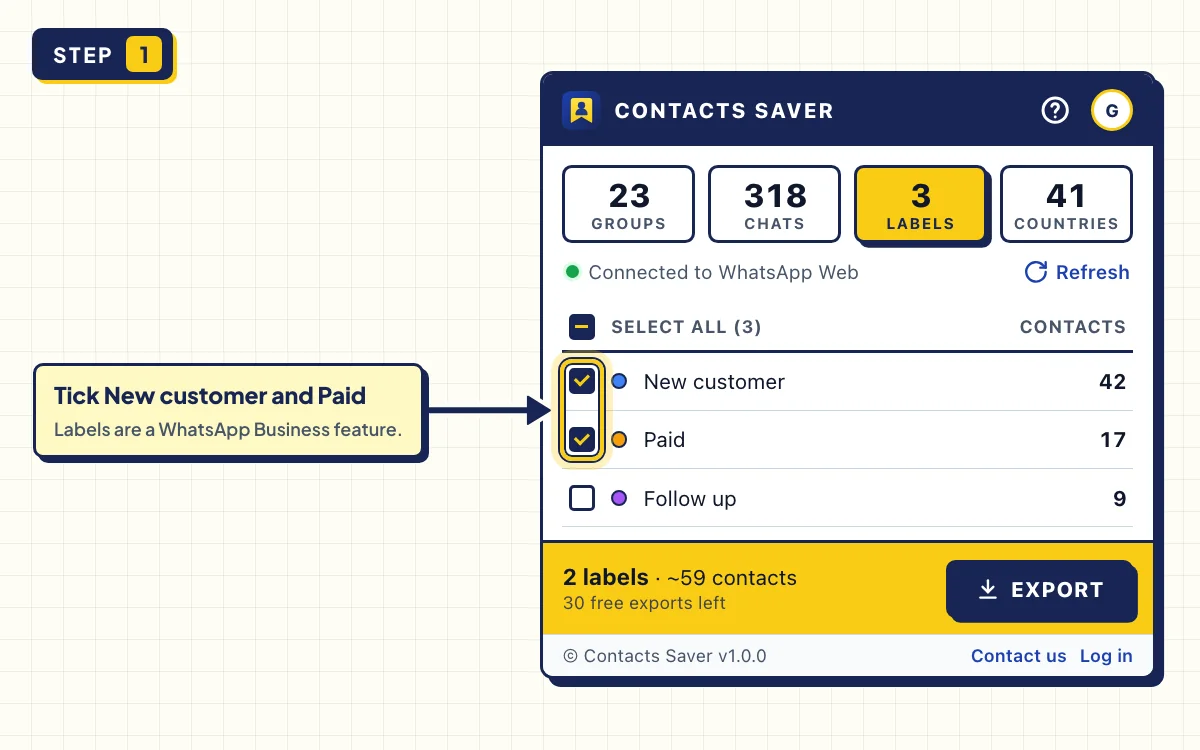
- Open the Labels tab, then tick New customer and Paid.
- Click Export. You get one row per customer, with their labels included.
- Contacts Saver. Free on the Chrome Web Store.
Many small businesses sort customers in WhatsApp Business with labels like New customer, Paid or Follow up. But WhatsApp can't turn a label into a list. This guide shows how to export WhatsApp Business labels to Excel with Contacts Saver, so each label becomes a customer list you can sort, share or keep as a backup.
Labels are a WhatsApp Business feature. On a normal WhatsApp account, the LABELS tab says No labels on this account. Use the Groups, Chats or Countries tabs there instead.
What you need
- A WhatsApp Business account that uses labels
- WhatsApp Web logged in with that account, in Chrome or Edge
- The free Contacts Saver extension
Step-by-step instructions
- 1
Open LABELS and tick your labels
Open WhatsApp Web and click the Contacts Saver icon. Go to the LABELS tab. You see every label with its color and its number of contacts.
Tick one or more labels, for example New customer and Paid. The bar at the bottom shows how many labels you picked and about how many contacts they hold.
- 2
Export and open the Excel file
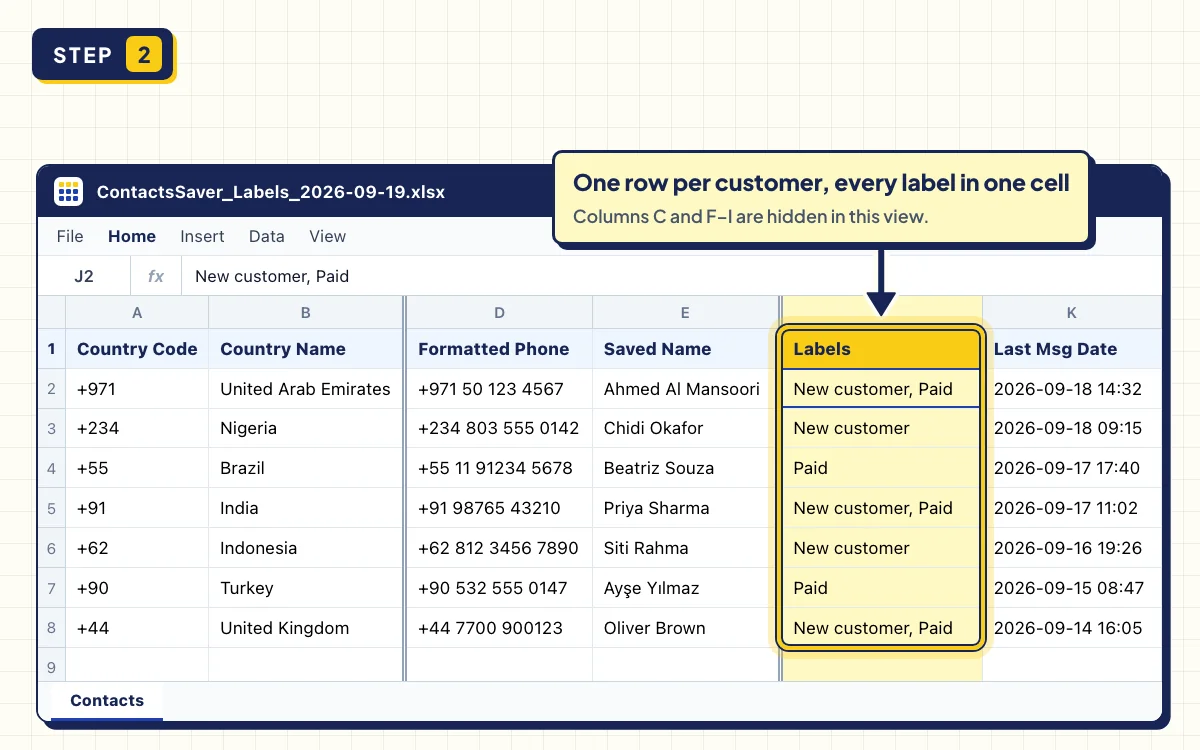
Click EXPORT. When CONTACTS READY appears, choose XLSX under FORMAT and click DOWNLOAD XLSX.
Each customer gets one row, even if they carry both labels. The Labels column lists all their labels, like "New customer, Paid".
- 3
Filter the list by label
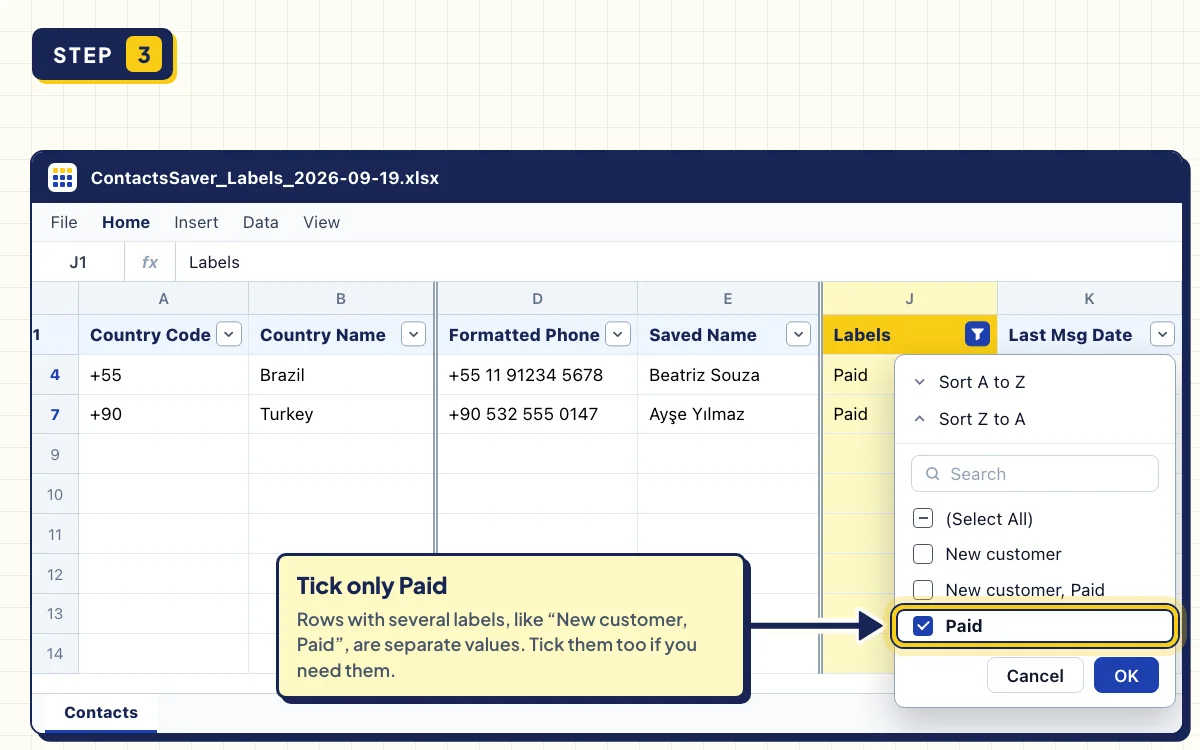
In Excel, click Data → Filter and open the filter on the Labels column. Tick only the label you want, like Paid, or choose Text Filters → Contains to match rows that have several labels.
- 4
Keep the file safe and fresh
The file holds your customers' phone numbers, so store it somewhere safe and share it only with people who need it.
Labels change every day. Export again when you need a fresh list. The date in the file name, like ContactsSaver_Labels_2026-09-19.xlsx, shows which file is newest.
Why export WhatsApp Business labels?
- Follow-up lists. Export Follow up at the start of the week and work through it in order.
- Backups. Keep a copy of your labelled customers before you switch phones or accounts.
- Handovers. Give a colleague a clean list instead of screenshots.
- CRM imports. Pick CSV instead of XLSX and follow the CSV guide.
Besides the Labels column, each row has the phone number with its country code, the country, the saved name, the public name and the date of your last message. That's enough to sort customers by market or by how recently you spoke.
Troubleshooting
- The tab says No labels on this account. Labels only exist in WhatsApp Business. Check that WhatsApp Web is logged in with your Business number.
- Some contacts are SKIPPED. WhatsApp didn't share their phone number. Contacts Saver counts them instead of adding broken rows.
- The popup says WhatsApp is still syncing. Wait for your chats to load, then click Refresh.
- A big label takes a while. Keep the popup open. STOP keeps every contact collected so far.
Tips
- Pick VCF to put labelled customers on a new phone. See the vCard guide.
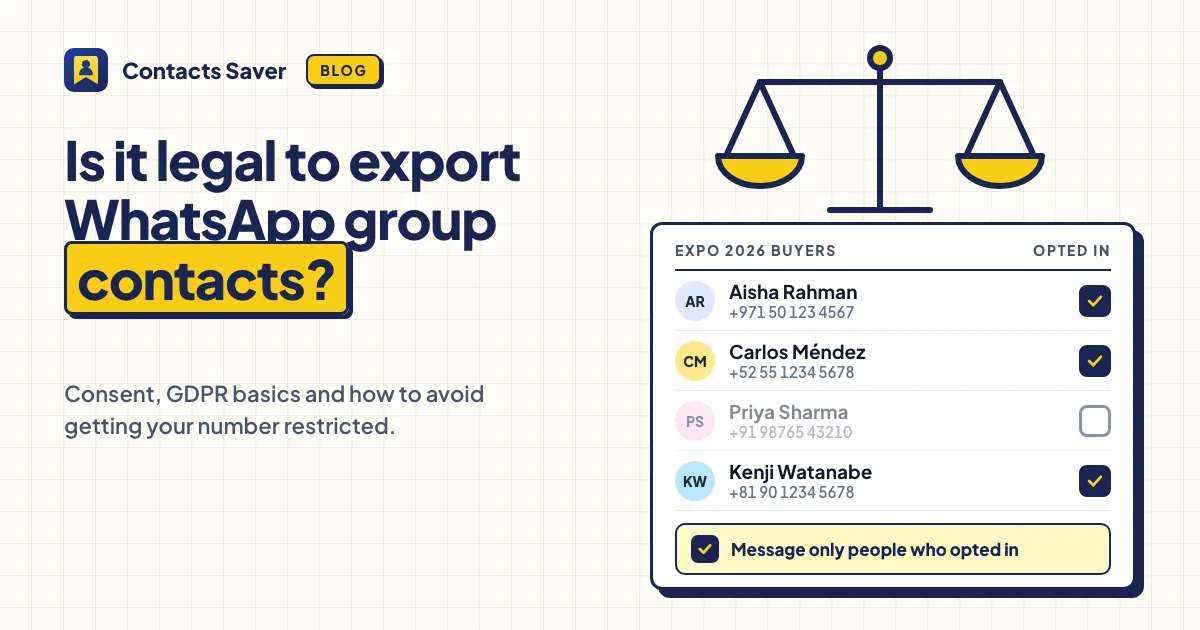
- Message only customers who agreed to hear from you. Read Is It Legal to Export WhatsApp Group Contacts? before you start a campaign.
Turn your labels into customer lists
Install Contacts Saver for free and export your first label in a few clicks. 30 full exports included.
Frequently asked questions
How do I export all contacts from WhatsApp Business?
Use the CHATS tab: Chat list gives everyone you chat with, and Saved contacts gives your address book. Use LABELS when you only want tagged customers.
Does a customer with two labels appear twice?
No. Each person appears once, and the Labels column lists all their labels, separated by commas.
What do I get if I tick two labels?
Everyone who has either label, each listed once. To see only the customers who have both, filter the Labels column in Excel for one label and then the other.
Can I export labels from the WhatsApp Business phone app?
Not directly. Contacts Saver works on WhatsApp Web in Chrome or Edge on a computer. Log in to WhatsApp Web with your Business number and your labels are there.