Quick answer
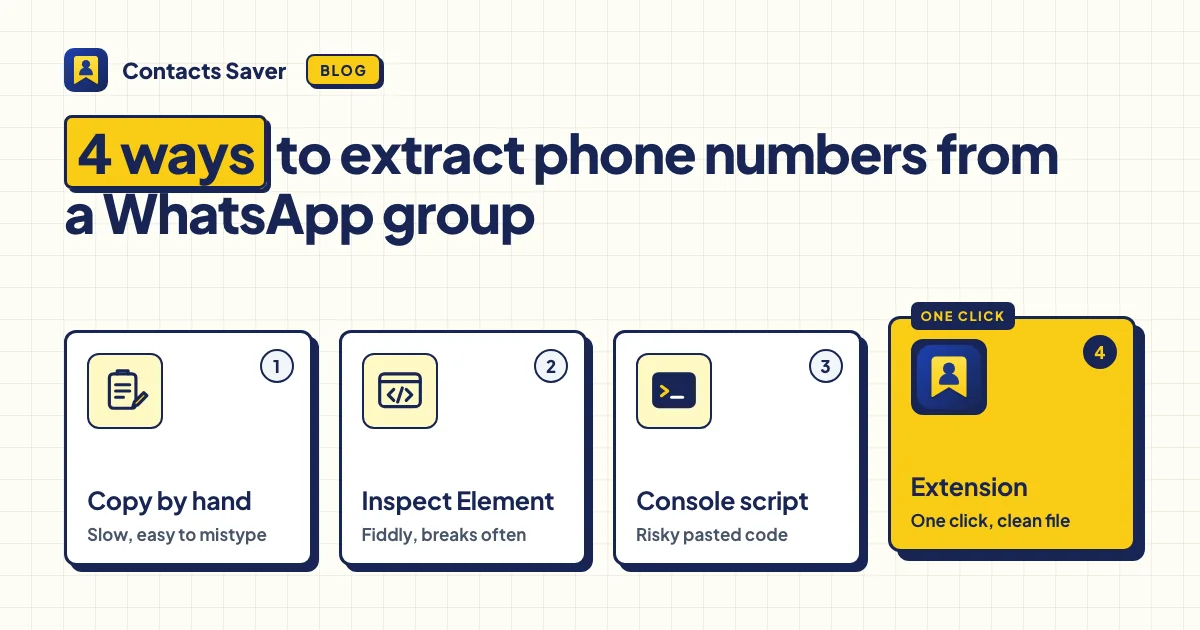
There are four ways to extract phone numbers from a WhatsApp group: copy them by hand, copy the member list with Inspect Element and clean it in Excel, run a console script, or use a browser extension. Copying by hand is fine for a small group. For big groups or many groups, an extension saves the most time.
You're in a WhatsApp group with 200 buyers, and you need their numbers in a spreadsheet. WhatsApp has no export button, so you have four options. This article shows how to extract phone numbers from a WhatsApp group with each one, and where each one goes wrong.
A quick note: we make Contacts Saver, one of the extensions in method 4, so we've tried hard to be fair to the other methods. All four only work for groups you're a member of, and none of them can show a number that WhatsApp hides.
Method 1: Copy the numbers by hand
Open the group, tap its name and scroll through the member list. For each person, copy the number and paste it into a sheet. People you saved show a name instead of a number, so you have to open each of them too.
It's free, safe and needs no tools. But every number costs several taps, so a group of 200 takes a long time. Mistakes creep in as well: a skipped member, a digit lost while pasting, or the same person copied twice.
Good for: a group of 10 or 20 people that you need once.
Method 2: Inspect Element and Excel transpose
On WhatsApp Web, a group's header shows a line of member names and numbers under the group name. With your browser's developer tools, you can copy that whole line at once and turn it into a column in Excel.
- Open the group in WhatsApp Web and wait until the member line appears under the group name.
- Right-click the line, choose Inspect, and copy the text of the highlighted element.
- Paste it into Excel and split it with Data → Text to Columns, using a comma as the separator.
- Copy the row and use Paste Special → Transpose to turn it into one column.
It's free and much faster than copying by hand. But the line shows your saved contacts by name, not by number, so you lose the numbers of everyone you already saved. The steps also depend on WhatsApp's page layout, which changes often. There's no country detection, and you repeat everything for each group.
Good for: one medium-sized group, if you're comfortable with developer tools.
Method 3: A console script from GitHub
Some developers share JavaScript snippets that you paste into the browser console (press F12, then open Console) while WhatsApp Web is open. The script reads the member list and downloads a CSV.
When a script works, it's fast and free. The problem is that scripts stop working. They depend on WhatsApp's internal code, which changes with updates, so an old script may fail or return only part of the list. A typical script gives you a plain list of numbers. Countries, duplicates and hidden numbers are up to you.
Good for: developers who read the code first and accept that it may break.
Method 4: A browser extension
An extension adds an export button to WhatsApp Web and does the reading for you. Contacts Saver is one example: you tick the groups, click EXPORT and download Excel, CSV, JSON or vCard. Here is what a good extension adds over the other methods:
- Many groups at once. With Merge duplicates, each person appears once, with all their groups listed.
- Numbers for saved contacts too, not only their names.
- Countries by area code. +1 numbers are split into the USA, Canada, Jamaica or Puerto Rico, and +7 numbers into Russia or Kazakhstan.
- Honest skips. Members whose number WhatsApp hides are counted as SKIPPED, not saved as broken rows.
- A STOP button. Stop a long export at any time and keep what was collected.
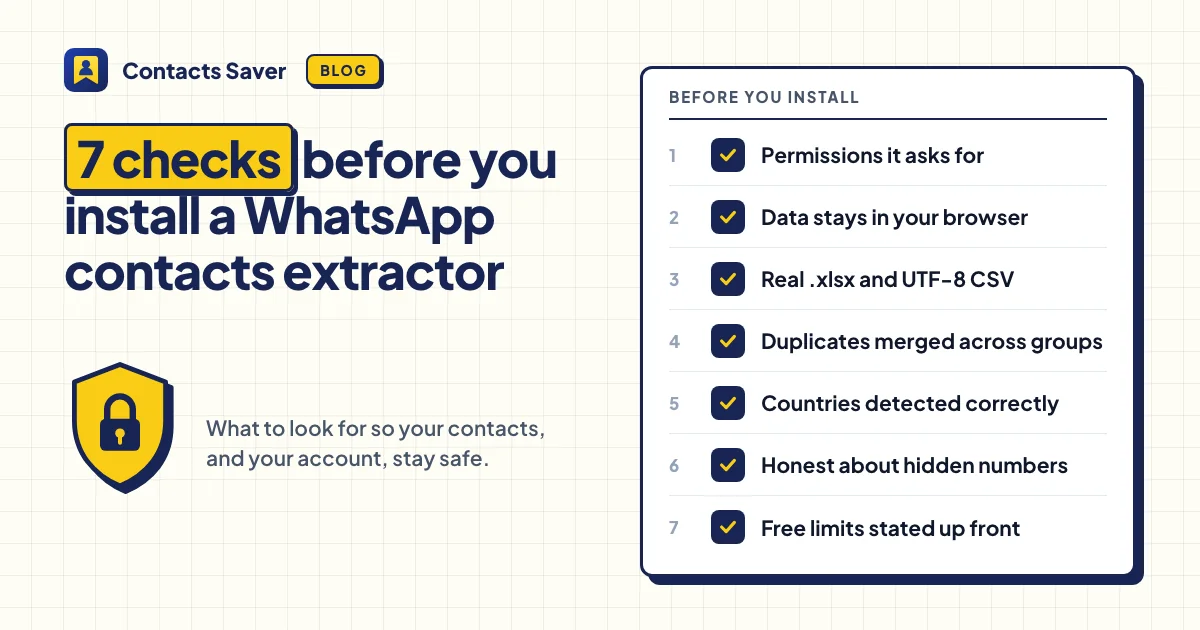
The risk with extensions is trust. An extension runs on a page where you're logged in, so check what it asks for before you install it. Our checklist helps: WhatsApp Contacts Extractor: 7 Things to Check Before You Install One.
Contacts Saver keeps contact data in your browser. Its free plan includes 30 full exports in every format. After that, each export downloads the first 10 rows, and VIP removes the limit.
The 4 ways to extract phone numbers from a WhatsApp group, side by side
| What matters | Copy by hand | Inspect Element + Excel | Console script | Extension |
|---|---|---|---|---|
| Time for 200 members | Very slow | Slow | Fast, if the script still works | Fast: a few clicks |
| Accuracy | Typos and missed members | Saved contacts appear as names, not numbers | Depends on the script | Numbers for everyone WhatsApp shares; hidden ones counted as skipped |
| Countries | Add them yourself | Add them yourself | Depends on the script | Detected, with +1 and +7 split by area code |
| Duplicates across groups | Remove by hand | Remove by hand | Depends on the script | Merged into one row |
| Risk | None | Low | High: the code runs with your WhatsApp login | Depends on the extension: check its permissions and privacy policy |
Which method should you choose?
- A small group, once: copy the numbers by hand. It's free and safe.
- One medium group, and you know developer tools: Inspect Element works, as long as you don't need numbers for saved contacts.
- You're a developer: a console script can work. Read it line by line first.
- Many groups, big groups or a weekly task: use an extension that keeps your data in your browser.
Whatever you choose, getting the numbers is the easy part. Before you message anyone, read Is It Legal to Export WhatsApp Group Contacts? For the full walkthrough of method 4, see How to Export WhatsApp Group Contacts to Excel. Contacts Saver is an independent product and is not affiliated with WhatsApp or Meta Platforms, Inc.
Try method 4 for free
Install Contacts Saver, tick a group and download your first Excel file. 30 full exports included.
Frequently asked questions
Can I extract contacts from a WhatsApp group if I'm not an admin?
Yes. Any member can see the member list, so any member can export it. No method works for groups you're not in.
Can I extract the numbers on my phone?
The WhatsApp phone app has no export, so all four methods use a computer and WhatsApp Web. To put the numbers on your phone afterwards, export a vCard and import it. See the vCard guide.
Why are some numbers missing?
WhatsApp hides some members' numbers, for example in large communities or because of privacy settings. No method can show a number WhatsApp doesn't share.